Document viewer page
Note
The PnP Modern Search Web Parts must be deployed to your App Catalog and activated on your site. See the installation documentation for details.
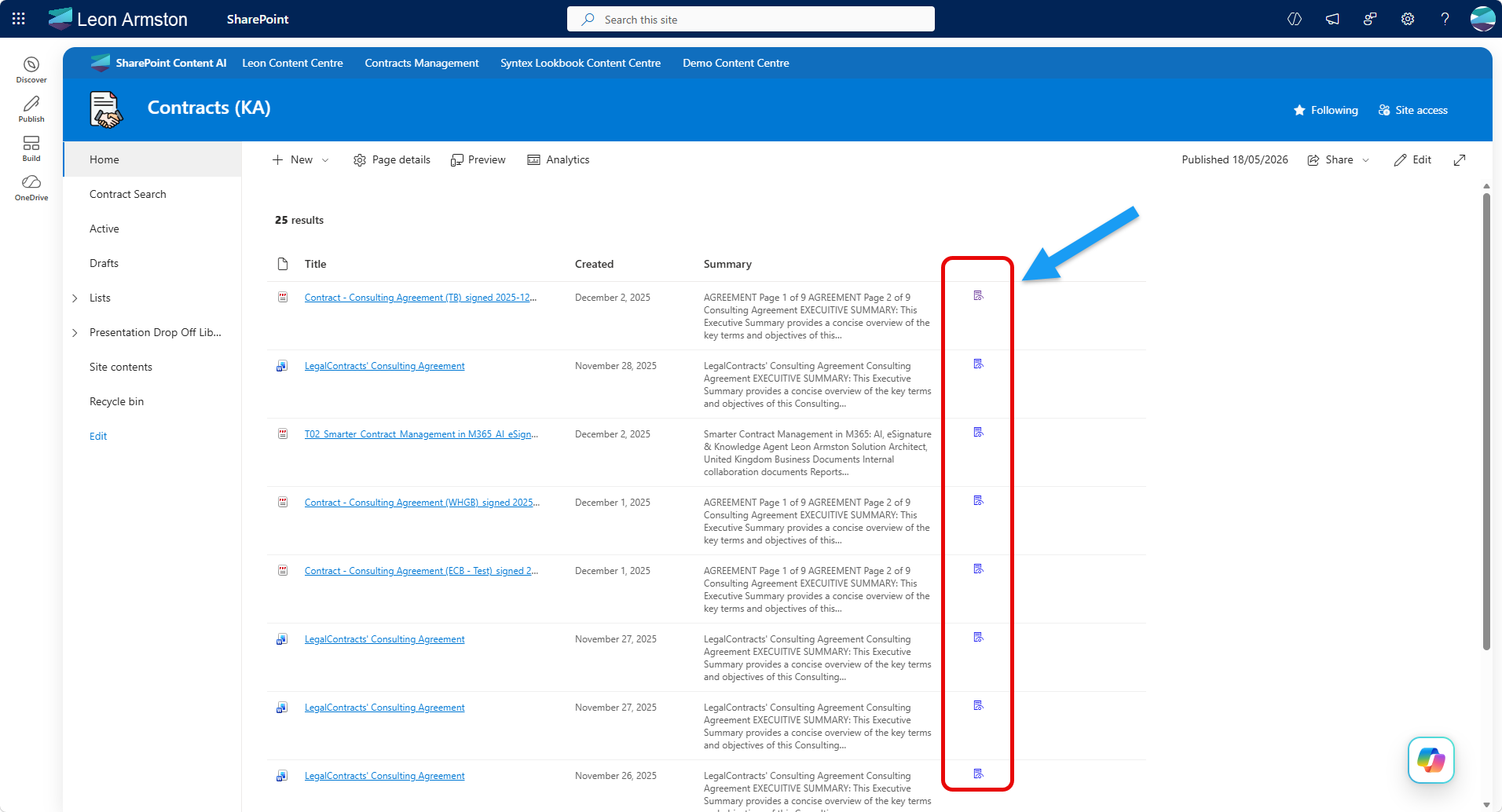
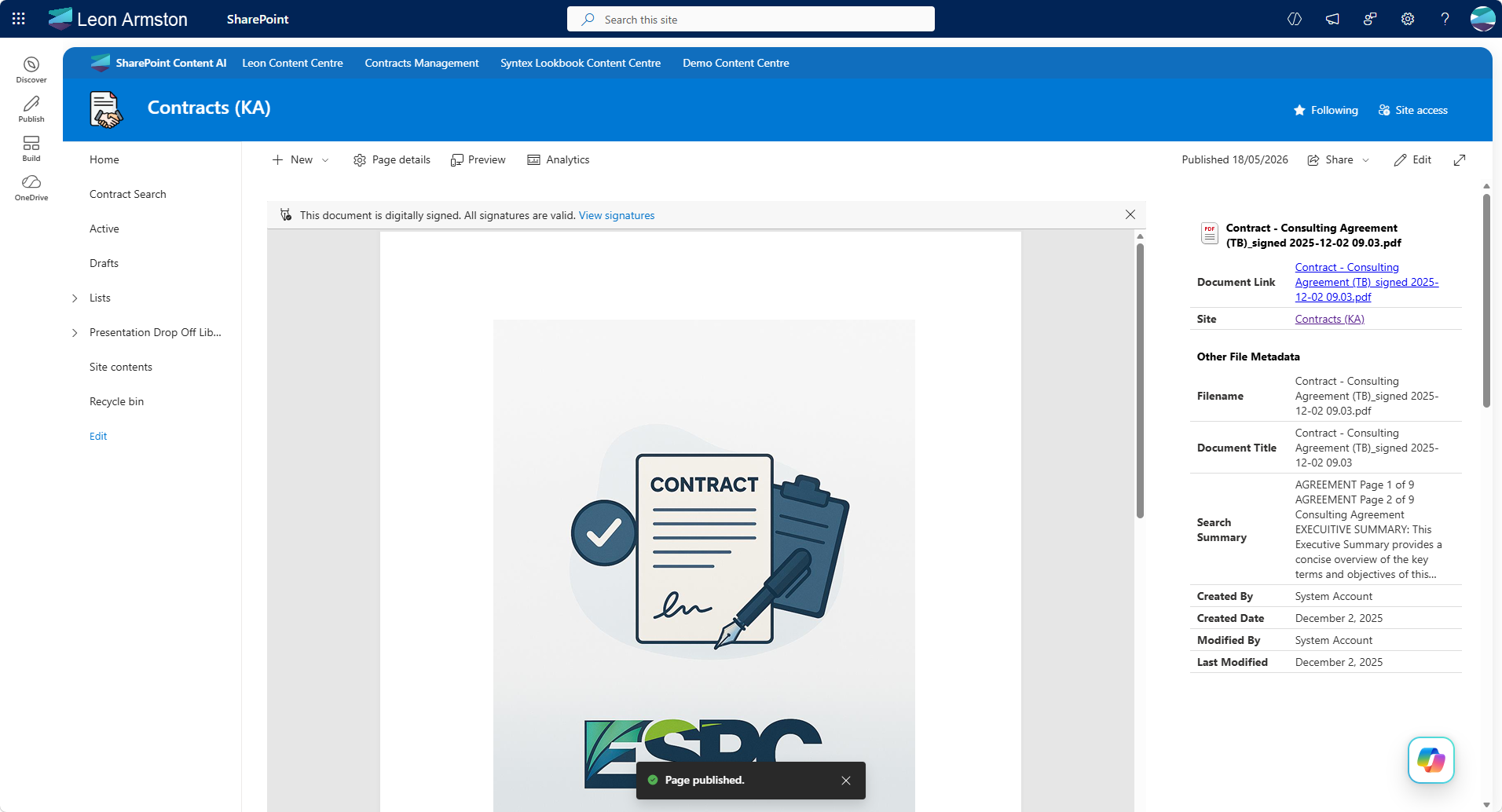
This scenario builds a dedicated document viewer page in SharePoint that opens when a user clicks a view icon in a search results list. The viewer page displays the document in an embedded iframe alongside a metadata panel, giving users a rich in-context viewing experience without leaving SharePoint.
The solution involves two pages:
- Document-Viewer.aspx — a SharePoint site page hosting the Advanced IFrame web part and a PnP Search Results web part
- Your search results page — which gets a small view icon column added that links through to the viewer page
Prerequisites
- The PnP Modern Search Web Parts must be deployed to your App Catalog and activated on your site
- The Advanced IFrame web part (react-advanced-iframe) by Sven Sieverding (365knoten) must be deployed to your App Catalog
- You need an existing search results page using the DetailsList layout. If you haven't set one up yet, follow the Create a simple search page scenario first
Part 1: Create the Document Viewer page
Step 1: Copy the Home page
The viewer page needs to be full width without the standard modern page chrome restricting the content area. The most reliable way to achieve this is to copy your site's Home page, which already has the correct layout, and clear it out.
- Navigate to Site Contents → Site Pages
- Find your Home.aspx page, click the three dots next to it and select Copy to
- Copy it to the same Site Pages library
- Rename the copied page to
Document-Viewer.aspx
Step 2: Clear the page
- Open
Document-Viewer.aspxand click Edit - Delete all existing web parts and content from the page, leaving a clean blank canvas
- Do not publish yet
Step 3: Set up the page layout
The viewer page uses two sections:
- A single column section for the main content area — this is where the Advanced IFrame web part will go
- A Vertical section on the right hand side that spans the full page height — this is where the PnP Search Results web part will go
To set this up:
- Add a single column section to the page
- Enable the Vertical section on the right by clicking + on the right edge of the page and selecting Add a vertical section
Step 4: Add the Advanced IFrame web part
In the single column section, add the Advanced IFrame web part and in the web part properties set the IFrame URL to:
This tells the web part to read the ServerRedirectedEmbedURL value from the page query string and load it in the iframe — so each time the page is opened with a different document URL, the correct file is displayed.
Step 5: Add the PnP Search Results web part
In the vertical section on the right, add a PnP Search Results web part and configure it as follows.
Data Source — Query template:
This queries for the specific document whose NormUniqueID matches the value passed in the query string, so the metadata panel always shows details for the document currently open in the iframe.
Data Source — Selected properties:
Ensure the following managed properties are included in addition to the default managed propeties included by default when adding the web part.
EditorOWSUSERFilenameLastModifiedTimeForRetention
Layouts — Layout type:
Select Custom and paste the following as the inline template:
<content id="data-content">

    {{#each data.items as |item|}}

        <div class="docMetadata">
            <div style="display: flex; flex-wrap: wrap; gap: 0; margin-top: 16px; border-collapse: collapse; width: 100%;">
                <!-- Header Row -->
                <div style="display: flex; flex-direction: row; flex: 1 1 100%; padding: 8px 9px; border-bottom: none; align-items: center; font-weight: bold; color: black; text-align: left;">
                    <pnp-iconfile data-extension="{{slot item @root.slots.FileType}}" data-is-container="false" data-size="32" style="margin-right: 5px;"></pnp-iconfile> {{slot item @root.slots.Filename}}
                </div>

                <!-- Data Rows -->
                <div style="display: flex; flex-direction: row; flex: 1 1 100%; padding: 4px 9px; border-bottom: 1px solid #ddd; align-items: center;">
                    <span style="font-weight: bold; padding-right: 15px; flex: 0 0 110px; text-align: left; word-wrap: break-word; white-space: normal;">Document Link</span>
                    <span style="flex: 1; color: #333; text-align: left;"><a href="{{slot item @root.slots.PreviewUrl}}" target="_blank">{{slot item @root.slots.Filename}}</a></span>
                </div>
                <div style="display: flex; flex-direction: row; flex: 1 1 100%; padding: 4px 9px; border-bottom: 1px solid #ddd; align-items: center;">
                    <span style="font-weight: bold; padding-right: 15px; flex: 0 0 110px; text-align: left; word-wrap: break-word; white-space: normal;">Site</span>
                    <span style="flex: 1; color: #333; text-align: left;"><a href="{{slot item @root.slots.SPWebURL}}" target="_blank" data-interception="off">{{slot item @root.slots.SiteTitle}}</a></span>
                </div>
            </div>
        </div>

        <div class="docMetadata">
            <div style="display: flex; flex-wrap: wrap; gap: 0; margin-top: 16px; border-collapse: collapse; width: 100%;">
                <!-- Header Row -->
                <div style="display: flex; flex-direction: row; flex: 1 1 100%; padding: 8px 9px; border-bottom: none; align-items: center; font-weight: bold; color: black; text-align: left;">
                    Other File Metadata
                </div>

                <!-- Data Rows -->
                <div style="display: flex; flex-direction: row; flex: 1 1 100%; padding: 4px 9px; border-bottom: 1px solid #ddd; align-items: center;">
                    <span style="font-weight: bold; padding-right: 15px; flex: 0 0 110px; text-align: left; word-wrap: break-word; white-space: normal;">Filename</span>
                    <span style="flex: 1; color: #333; text-align: left;">{{#if (slot item @root.slots.Filename)}}{{slot item @root.slots.Filename}}{{else}}<span style="color: #999;">No Filename detected.</span>{{/if}}</span>
                </div>
                <div style="display: flex; flex-direction: row; flex: 1 1 100%; padding: 4px 9px; border-bottom: 1px solid #ddd; align-items: center;">
                    <span style="font-weight: bold; padding-right: 15px; flex: 0 0 110px; text-align: left; word-wrap: break-word; white-space: normal;">Document Title</span>
                    <span style="flex: 1; color: #333; text-align: left;">{{slot item @root.slots.Title}}</span>
                </div>
                <div style="display: flex; flex-direction: row; flex: 1 1 100%; padding: 4px 9px; border-bottom: 1px solid #ddd; align-items: center;">
                    <span style="font-weight: bold; padding-right: 15px; flex: 0 0 110px; text-align: left; word-wrap: break-word; white-space: normal;">Search Summary</span>
                    <span style="flex: 1; color: #333; text-align: left;">{{#if (slot item @root.slots.Summary)}}{{getSummary (slot item @root.slots.Summary)}}{{else}}<span style="color: #999;">No Summary detected.</span>{{/if}}</span>
                </div>
                <div style="display: flex; flex-direction: row; flex: 1 1 100%; padding: 4px 9px; border-bottom: 1px solid #ddd; align-items: center;">
                    <span style="font-weight: bold; padding-right: 15px; flex: 0 0 110px; text-align: left; word-wrap: break-word; white-space: normal;">Created By</span>
                    <span style="flex: 1; color: #333; text-align: left;">{{#with (split (slot item @root.slots.Author) '|') as |values|}}{{values.[1]}}{{/with}}</span>
                </div>
                <div style="display: flex; flex-direction: row; flex: 1 1 100%; padding: 4px 9px; border-bottom: 1px solid #ddd; align-items: center;">
                    <span style="font-weight: bold; padding-right: 15px; flex: 0 0 110px; text-align: left; word-wrap: break-word; white-space: normal;">Created Date</span>
                    <span style="flex: 1; color: #333; text-align: left;">{{getDate (slot item @root.slots.Date) "LL"}}</span>
                </div>
                <div style="display: flex; flex-direction: row; flex: 1 1 100%; padding: 4px 9px; border-bottom: 1px solid #ddd; align-items: center;">
                    <span style="font-weight: bold; padding-right: 15px; flex: 0 0 110px; text-align: left; word-wrap: break-word; white-space: normal;">Modified By</span>
                    <span style="flex: 1; color: #333; text-align: left;">{{#with (split (slot item @root.slots.Editor) '|') as |values|}}{{values.[1]}}{{/with}}</span>
                </div>
                <div style="display: flex; flex-direction: row; flex: 1 1 100%; padding: 4px 9px; border-bottom: 1px solid #ddd; align-items: center;">
                    <span style="font-weight: bold; padding-right: 15px; flex: 0 0 110px; text-align: left; word-wrap: break-word; white-space: normal;">Last Modified</span>
                    <span style="flex: 1; color: #333; text-align: left;">{{getDate (slot item @root.slots.LastModifiedTimeForRetention) "LL"}}</span>
                </div>
            </div>
        </div>

    {{/each}}

</content>
Layouts — Template slots:
Add the following three slots in addition to the standard set:
| Slot name | Slot field |
|---|---|
Filename |
Filename |
Editor |
EditorOWSUSER |
LastModifiedTimeForRetention |
LastModifiedTimeForRetention |
Step 6: Publish the Document Viewer page
Save and publish Document-Viewer.aspx. Note the full URL of the page — you will need it in Part 2.
Part 2: Add the view icon column to the Search Results page
Step 7: Add the required managed properties
On your search results page, edit the PnP Search Results web part. Under SharePoint Search, find the Selected properties field and ensure the following are included in addition to any you already have:
ServerRedirectedEmbedURL
Step 8: Add the view icon column
Under Layouts → Columns, add a new column at the end of your existing columns and configure it as follows:
- Column display name: enter a single space (leaving it visually blank)
- Use Handlebar expression: checked
- Minimum width:
5 - Maximum width:
5
Paste the following as the column value:
{{#if (eq FileType "pdf")}}
<a href="{{replace @root.context.site.absoluteUrl @root.context.site.serverRelativeUrl ''}}{{@root.context.site.serverRelativeUrl}}/SitePages/Document-Viewer.aspx?ServerRedirectedEmbedURL={{encodeURI DefaultEncodingURL}}%23toolbar%3D0&NormUniqueID={{NormUniqueID}}" style="text-decoration: none" data-interception="off" target="_blank">
    <pnp-icon data-name="EntryView" aria-hidden="true"></pnp-icon>
</a>
{{else}}
<a href="{{replace @root.context.site.absoluteUrl @root.context.site.serverRelativeUrl ''}}{{@root.context.site.serverRelativeUrl}}/SitePages/Document-Viewer.aspx?ServerRedirectedEmbedURL={{encodeURI ServerRedirectedEmbedURL}}&NormUniqueID={{NormUniqueID}}" style="text-decoration: none" data-interception="off" target="_blank">
    <pnp-icon data-name="EntryView" aria-hidden="true"></pnp-icon>
</a>
{{/if}}
Tip
The template handles PDFs and non-PDFs differently. For PDFs it uses DefaultEncodingURL with %23toolbar%3D0 appended to hide the browser PDF toolbar in the iframe. For all other file types it uses ServerRedirectedEmbedURL which provides the Office Online viewer URL.
Part 3: Publish and test
Step 9: Publish and test
Save and publish your search results page. Each result row will show the view icon. Click it and verify that:
Document-Viewer.aspxopens in a new tab- The document loads in the iframe on the left
- The metadata panel on the right shows the correct details for that document
Tip
If the iframe shows blank, check that ServerRedirectedEmbedURL is included in the Selected Properties of your search results web part. If the metadata panel shows blank, check that NormUniqueID is being passed correctly in the URL and that the PnP Search Results web part on the viewer page is configured to read from the query string.